Home / Guides / Stream your DAW mix to OBS or BUTT
Stream Your DAW Mix to OBS or BUTT Without a Second Computer
Every other guide on this site is about getting audio into a DAW. This one goes the other way. If you mix a show in a DAW and need that mix to reach a broadcast or streaming app, the usual answer is to send it out of the machine and back in again, often through a second computer. It does not have to work that way. AudioRoute installs a virtual input device, so OBS and BUTT can simply select the mix as their audio source on the same machine that is playing it.
AudioRoute registers AudioRoute Input as a normal recording device, so any broadcast app can pick it and receive whatever your computer is playing, your DAW mix included. No second machine, no cable loop, no aggregate device.
- Set your DAW's output device to the same device your system is using for output.
- In OBS: Settings → Audio → Mic/Auxiliary Audio → AudioRoute Input.
- In OBS: Advanced Audio Properties → set that source's Audio Monitoring to Monitor Off.
- In BUTT: Settings → Audio → Audio Device → AudioRoute Input.
- Play something, confirm the meters move, then go live.
- What this replaces
- Why this is hard by default
- What you'll need
- Step 1 — Confirm AudioRoute is running
- Step 2 — Match the DAW output to the system output
- Step 3 — Select AudioRoute Input in OBS
- Step 4 — Turn OBS monitoring off
- Step 5 — Select AudioRoute Input in BUTT
- Windows: the ASIO exception
- Before you go live
What this replaces
Most of the time this is a small problem. Your DAW is playing, OBS or BUTT is open on the same machine, and there is simply no way to point one at the other. You are streaming a live set, running a lesson, demoing a plug-in, or recording a podcast with music in it. One computer, two applications, no cables involved anywhere. If that is you, the five steps below are the entire guide and you can skip to Step 1.
It only becomes elaborate when the audio has to leave the machine to get from one app to the other. A live sound engineer described his rig to us, and it shows how far that can go. He mixes a show in a DAW on a MacBook and broadcasts it with BUTT and OBS, and his signal path looked like this:
Live audio → FOH mixer → USB → MacBook → USB → FOH mixer → TRS → second audio interface → USB → iMac → broadcast software
The mix leaves the laptop, travels back through the mixer, comes out on a pair of TRS cables, enters a second audio interface, and arrives over USB at a second computer that does nothing but run the broadcast. Four hops and a whole extra machine, all to move audio between two applications.
With AudioRoute the same chain becomes:
Live audio → FOH mixer → USB → MacBook → DAW → AudioRoute Input → OBS / BUTT
The second computer, the second interface and two cable runs come out of the rig. Everything after the DAW happens inside the machine.
Both ends of that range use the same mechanism, and the setup is the same either way. The DAW keeps playing exactly where it always did, and the broadcast app reads a device instead of a cable.
Why this is hard by default
OBS and BUTT can both record from any input device on your system: a microphone, an audio interface, a USB mixer. What neither can do is read the output of another application. Your DAW sends its mix to an output device, and an output device is not something another app can listen to.
That single limitation is what puts the second computer in the rig. If the only way out of the DAW is a physical output, then the only way into the broadcast app is a physical input, and you need cables, an interface and often a machine to land them on.
The conventional software workarounds try to solve it by rerouting:
- BlackHole or a virtual cable gives you a fake output device, so you point the DAW at it and the broadcast app reads from it. It works until you want to hear the mix yourself, at which point you are building aggregate devices in Audio MIDI Setup and your monitoring path depends on them.
- Loopback is the same model with a nicer interface and a higher price.
- Stereo Mix on Windows was deprecated on most hardware and is unreliable where it survives.
AudioRoute does not reroute anything. It takes a parallel copy of whatever your computer is already playing and offers that copy as an input device called AudioRoute Input. Your DAW keeps its output exactly where it was, you keep hearing the mix through the same speakers or interface, and the broadcast app simply selects a device from a list. More on how that works under the hood if you want the detail.
It adds no latency to what you hear. The tap runs alongside your monitoring path rather than inside it, so inserting AudioRoute does not put anything between the DAW and your ears. That matters more here than in a studio: on a live show your monitoring is the show.
What you'll need
- macOS 14.2 (Sonoma) or later, or Windows 10 or later. AudioRoute needs the CoreAudio process tap APIs Apple shipped in macOS 14, or WASAPI loopback on Windows.
- AudioRoute 1.0 or later. The AudioRoute Input virtual device ships on both platforms. The free 14-day trial covers this entire workflow. €29 lifetime licence.
- Your DAW, configured the way you already run it.
- OBS Studio, BUTT, or both. The steps below cover each separately; nothing stops you running them at the same time, since both read the same input device.
Step 1
Confirm AudioRoute is running
Look for the AudioRoute icon in the macOS menu bar or the Windows system tray. If it is there, the daemon is running and the AudioRoute Input device is registered with the operating system.


If OBS or BUTT was already open when you installed AudioRoute, quit and reopen it. Both scan for audio devices at launch and will not see a device that appeared afterwards.
Step 2
Match the DAW output to the system output
This is the step that decides whether the whole thing works, and it is the one people miss.
AudioRoute captures what your computer is playing, through the output device the operating system is currently using. If your DAW is pointed at a different device, its audio never passes the point AudioRoute is listening at, and the broadcast app receives silence with no error to explain it.
- macOS: check the output device in System Settings → Sound, then open your DAW's audio preferences and confirm its output device is the same one.
- Windows: check the playback device in Sound settings, then confirm your DAW's output matches it. See the ASIO exception below, which applies to most interface drivers.
Silence with no warning is almost always this. If the meters in OBS or BUTT stay flat while the DAW is clearly playing, come back to this step before troubleshooting anything else. A DAW quietly holding onto an interface you are no longer using for system output is the single most common cause.
Step 3
Select AudioRoute Input in OBS
OBS gives you two places to do this, and either is fine.
As a global audio device. Open Settings → Audio, and under Global Audio Devices set Mic/Auxiliary Audio to AudioRoute Input. The source then appears in your Audio Mixer panel for every scene.
As a scene source. In the Sources panel click +, choose Audio Input Capture, give it a name such as "DAW mix", and pick AudioRoute Input as the device. Use this one if you want the mix present in some scenes and not others.
Start playback in the DAW. The meter for that source in the OBS Audio Mixer should move. If it does, the hard part is done.
macOS will ask for microphone permission. Because AudioRoute Input registers as an input device, macOS treats it exactly like a microphone. The first time OBS opens it, macOS prompts for microphone access. Grant it, or OBS records silence and says nothing about why. If you dismissed the prompt, the toggle lives in System Settings → Privacy & Security → Microphone.
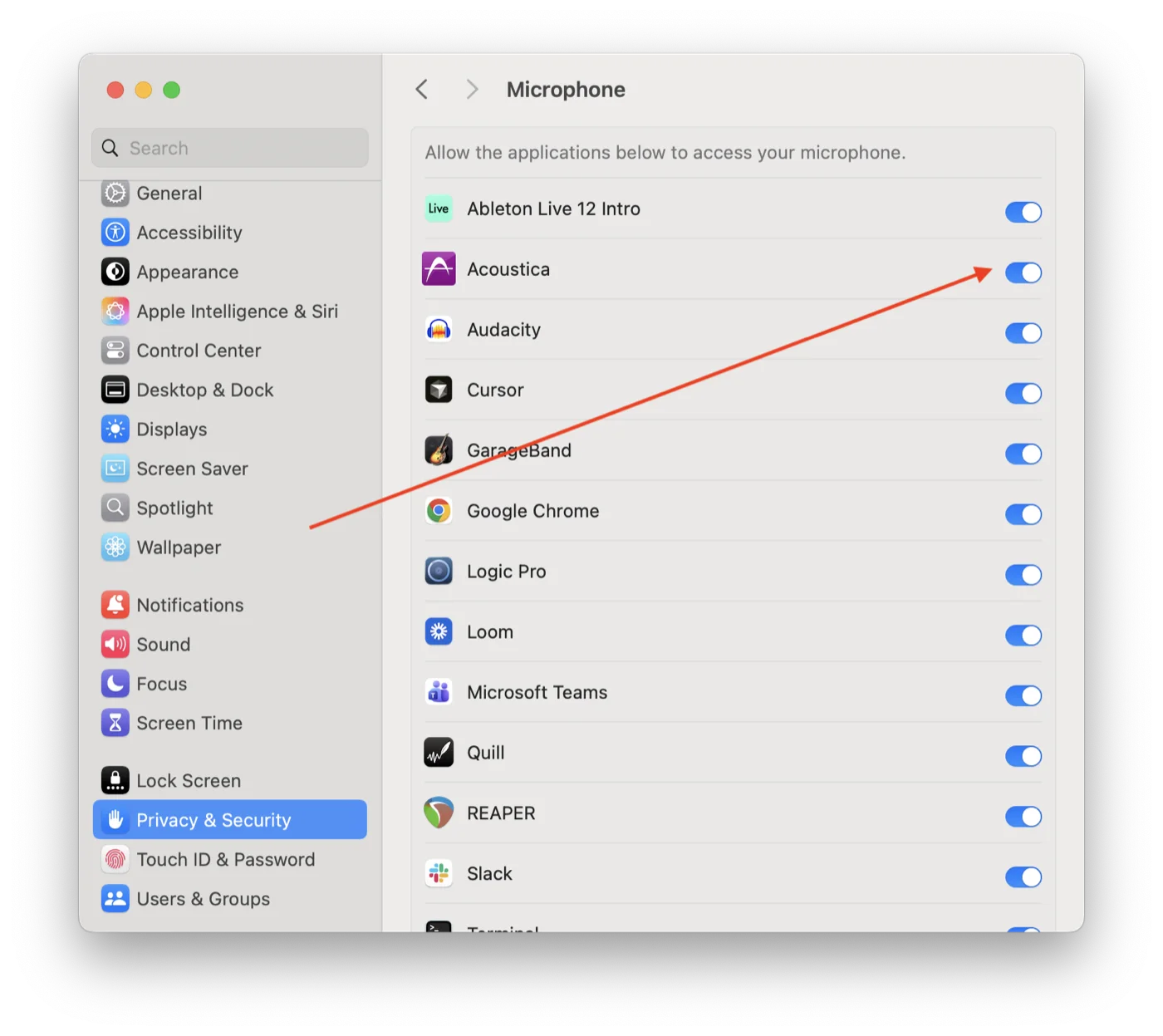
Windows has an equivalent under Settings → Privacy & security → Microphone. Confirm that desktop app access is allowed if OBS shows no signal.
Step 4
Turn OBS monitoring off
This is the one setting that can turn a working setup into a howling one, so it is worth the thirty seconds.
OBS can play a source back out of your speakers so you can hear it. If you enable that for the AudioRoute Input source, OBS plays the captured mix out through your system output, AudioRoute captures it again, and you have built a feedback loop out of software.
In the Audio Mixer panel, click the … menu on the source and choose Advanced Audio Properties. Find your AudioRoute Input source and set Audio Monitoring to Monitor Off.
Monitor Off is the default, so on a fresh source you have nothing to change. Check it anyway. You are already hearing the mix from the DAW, so there is never a reason to monitor this source in OBS.
Step 5
Select AudioRoute Input in BUTT
BUTT is simpler, because it has no monitoring path at all.
Open Settings → Audio and set the Audio Device to AudioRoute Input. Set the channel count to stereo and leave the sample rate matching your DAW session. The level meter in the main BUTT window should move as soon as the DAW plays.
Because BUTT never plays anything back out, there is no loop to avoid. You can leave it running alongside OBS; both read the same device independently.
Windows: the ASIO exception
On Windows there is one case where this does not work, and it is worth knowing before a show rather than during one.
If your DAW outputs through an ASIO driver in exclusive mode, which is how most interface drivers are set up for low-latency work, the audio bypasses the Windows mixer entirely. AudioRoute listens at the mixer, so it never sees that signal, and AudioRoute Input stays silent no matter what you select in OBS.
Two ways around it:
- Point the DAW at a WASAPI or WDM output for the broadcast. Latency goes up, which is fine if the DAW is not in your monitoring path, and not fine if it is.
- Put a virtual ASIO bridge in front, such as Voicemeeter or ASIO Link Pro, which re-exposes the ASIO stream where AudioRoute can see it. Our ASIO on Windows guide goes through the options properly.
macOS has none of this. CoreAudio does not have the exclusive-mode split, so a DAW playing to your interface is visible to AudioRoute whichever way you have it configured.
Before you go live
A short list worth running through, because a broadcast is a bad place to discover any of them.
- Keep the machine quiet. AudioRoute Input carries everything the computer plays, not just the DAW. A notification sound, a browser tab, a video call ringtone: all of it goes out on the broadcast. Mute or quit anything that might make a noise, and turn off notification sounds for the duration.
- Check the meters, not the settings. Play something through the DAW and watch the level move in OBS or BUTT before you start. Every failure mode described above looks identical from the settings screen and obvious from the meter.
- Match your sample rates. Keep the DAW session, the system output and the broadcast app on the same rate. Mismatches are resampled rather than broken, but on a long show that is work you do not need.
- Quit and relaunch after installing. Broadcast apps scan for devices at launch. If AudioRoute Input is not in the list, that is usually all it is.
- Do a full dry run. Stream to a private or unlisted destination for a few minutes with the real rig, real levels and the real DAW session. The setup is simple enough that it either works completely or not at all, so five minutes of proof is worth more than any checklist.
Related guides
- Record system audio on Mac — capture straight to a WAV file, no DAW involved.
- Record system audio on Windows — the same, Windows version.
- Does AudioRoute need ASIO on Windows? — the full explanation of the exclusive-mode problem above.
- Record system audio in Logic Pro — the other direction, audio into the DAW.
- AudioRoute vs BlackHole — why this does not need an aggregate device.
Try it before your next show
Free 14-day trial, no credit card. €29 lifetime license, all future updates included. Mac and Windows on the same key.
Download AudioRoute View pricing