Home / Guides / Record your Mac screen with system audio
Record your Mac screen with system audio
The Mac's screen recorder records a microphone but not the sound your Mac plays. With AudioRoute it takes one setting.
How to
1. Press Shift-Command-5
The screen recording toolbar opens. QuickTime's File → New Screen Recording opens the same one.
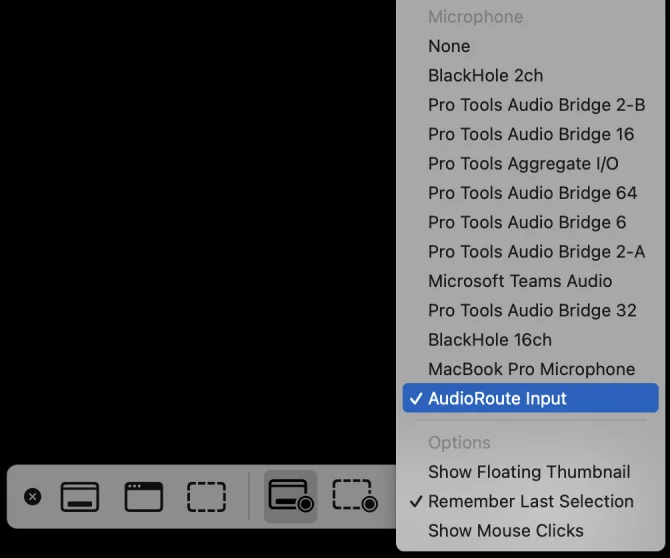
2. Choose AudioRoute Input
Click Options and pick AudioRoute Input under Microphone.
3. Record
Click Record. You still hear everything as usual, and the video has the sound on it.
Add your voice
The recorder takes one microphone, so add yours in AudioRoute: open What to record, turn on Input and pick your mic. AudioRoute Input then carries both. More on recording your mic.
OBS, ScreenFlow and others
Same thing: choose AudioRoute Input as the audio source. In OBS it's an Audio Input Capture source (OBS guide).
FAQ
Can the Mac's built-in screen recorder record system audio?
Not on its own. It records a microphone only. Install AudioRoute and choose AudioRoute Input as the microphone, and it records the computer's sound.
Can I record my voice and the computer's sound in the same screen recording?
Yes. Turn on Input in AudioRoute's What to record and pick your microphone. AudioRoute Input then carries both.
Does this change what I hear?
No. Your speakers or headphones work as before. AudioRoute records a copy of the sound.
Which screen recorders does it work with?
Any recorder that lets you choose an audio input: the Mac's Shift-Command-5 recorder, QuickTime, OBS, ScreenFlow and others.
Why is my screen recording silent?
Check that the AudioRoute icon is in the menu bar. If it still records nothing, open System Settings, Privacy & Security, Microphone and allow the app you record with.
Do I need a DAW?
No. AudioRoute Input works on its own with any app that records from an input.
Try AudioRoute on your next session
Free 14-day trial, no credit card. €39 lifetime license, all future updates included.
Download AudioRoute View pricing