Home / Guides / Record system audio in Logic Pro
How to Record System Audio in Logic Pro
Logic Pro on macOS doesn't ship with a built-in way to record system audio — the sound coming out of Spotify, YouTube, Zoom, your browser, or any other app — into a project. This guide walks through the workflow using AudioRoute. As of v0.2.0 there are two flavours of the AudioRoute plug-in (Audio Effect and Instrument); pick the one that matches your starting point and follow that section linearly. No aggregate device, no Audio MIDI Setup, no output rerouting.
To record system audio into Logic Pro, insert AudioRoute Capture FX on an audio track, route that track's output to a spare bus, then record it on a second audio track whose input is that bus — no aggregate device or Audio MIDI Setup.
- Insert AudioRoute Capture FX on an audio track (Audio Units → AudioRoute) and click Enable Output to DAW.
- Set that track's Input to any unused bus and its Output to another unused bus.
- Add a second audio track; set its Input to that output bus and its Output to No Output.
- Enable Input Monitoring on the first track and arm the second track.
- Press the global Record button.
Prefer to capture and drag it in? This guide covers the live-to-track flow. If you'd rather record the audio and drag the finished clip straight onto a track, the drag-and-drop workflow works the same in every DAW.
Why this is hard in Logic by default
Logic Pro can record audio from any input device — an audio interface, a USB microphone, a built-in mic. But "system audio" isn't a single device. macOS routes whatever you're playing through whatever output you've selected (built-in speakers, headphones, an audio interface, AirPlay), and there's no built-in "system output as input" device to pick.
The conventional workarounds all treat system audio as a routing problem:
- BlackHole installs a virtual audio device. You then create an aggregate or multi-output device in Audio MIDI Setup that combines BlackHole with your real speakers, so you can still hear what's being routed. It works, but it hijacks your output routing and breaks the moment you change devices.
- Loopback wraps the same idea in a friendlier UI, for a higher price. Same underlying model.
AudioRoute takes a different approach. Instead of rerouting your output through a virtual device, it quietly observes whatever your Mac is already playing. Your speakers, headphones, or audio interface keep working exactly as they did, and AudioRoute simply gets a parallel copy of the audio to deliver into Logic. No aggregate device, no rerouting, no Audio MIDI Setup — nothing to wire up or tear down. More on how it works under the hood if you're curious.
Two ways to load AudioRoute — which to pick
AudioRoute 0.2.0 ships the capture plug-in in two flavours. They share the same daemon underneath and produce identical capture; the difference is purely where in Logic's UI you load each one:
| If you… | Use | Where it lives in Logic |
|---|---|---|
| Are setting up a new session | AudioRoute Capture FX (Audio Effect) | Audio FX slot on an Audio track — Audio Units → AudioRoute → AudioRoute Capture FX. Recommended path going forward. |
| Are opening a session that already had AudioRoute loaded before 0.2.0 | AudioRoute Capture (Instrument) | Instrument slot on a Software Instrument track — AU Generators → AudioRoute → AudioRoute Capture. The original variant, byte-identical plug-in ID, so old sessions auto-load it. |
Either one captures the same system audio and writes the same result to disk. The Effect variant is the one most audio engineers will reach for instinctively because it appears in Logic's Audio FX menu where you'd expect a "process audio on this track" plug-in to live. The Instrument variant stays for backwards compatibility — if you used the pre-0.2.0 version, your existing sessions reload it exactly as before.
Logic's specific quirk — recording the output of a plug-in chain — means both flavours end up with roughly the same number of steps (because Logic records the dry input of a track by default, not the processed output, you need a separate recording track in either flavour). The Effect variant is still preferred because it groups AR with the rest of your audio processing plug-ins rather than burying it in the AU Generators submenu.
Pick a section and follow it linearly — the two flows don't interleave.
What you'll need
- macOS 14.2 (Sonoma) or later — AudioRoute requires the CoreAudio process tap APIs that Apple shipped in macOS 14.
- Logic Pro 10.6 or later — this guide was written using Logic Pro 12.2, but the workflow is the same on any recent version.
- AudioRoute 0.2.0 or later — the free 14-day trial covers the whole workflow. €39 lifetime license. The 0.2.0 release ships both plug-in flavours; if you're on 0.1.x, the Effect variant won't appear in your Audio FX menu — update first.
Once AudioRoute is installed (drop in the signed .pkg, enter your admin password once, done), Logic will see both AudioRoute Capture FX and AudioRoute Capture as available AU plug-ins the next time it scans. No restart needed in most cases — just quit and reopen Logic.
Section A — Using AudioRoute Capture FX (Audio Effect)
This is the recommended workflow for new sessions. AudioRoute Capture FX inserts on a regular Audio track and replaces whatever's coming in with system audio from the AR daemon. A second Audio track receives the processed signal via a Bus and is the one you actually record on. (Logic's recording engine captures a track's dry input, not the post-FX signal, which is why a second track is needed; this is a Logic quirk, not an AR quirk.)
Step 1
Create the processing audio track
Open your Logic project, or start a new one. Add a new Audio track via Track menu → New Track → Audio, or the shortcut Cmd+Option+N. Logic names it Audio 1 by default. This is the track that will host the AudioRoute Capture FX plug-in.
Step 2
Insert AudioRoute Capture FX
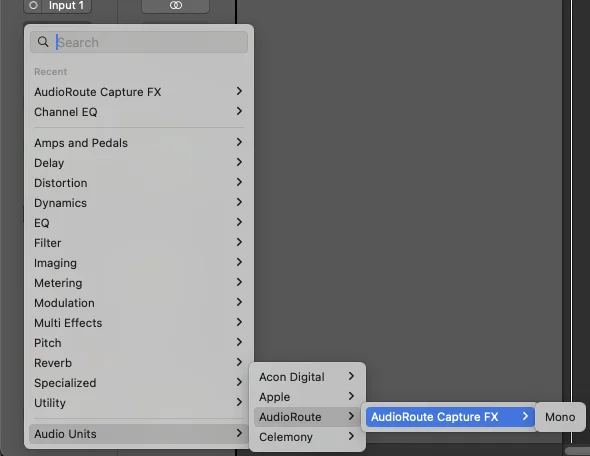
Click the Audio FX slot on the Audio 1 channel strip (above the Sends area). The plug-in picker opens. Navigate to:
Audio Units → AudioRoute → AudioRoute Capture FX
Mono or Stereo is fine — AudioRoute Capture FX adapts to whichever channel-config Logic asks for.
Step 3
Enable output and verify audio is flowing
The AudioRoute Capture FX plug-in window opens. The first time you load any AudioRoute plug-in, you'll see an "Output to DAW is muted" warning with a big blue Enable Output to DAW button. This is intentional — the plug-in starts in a safe state so it can't accidentally create a feedback loop before your routing is set up.
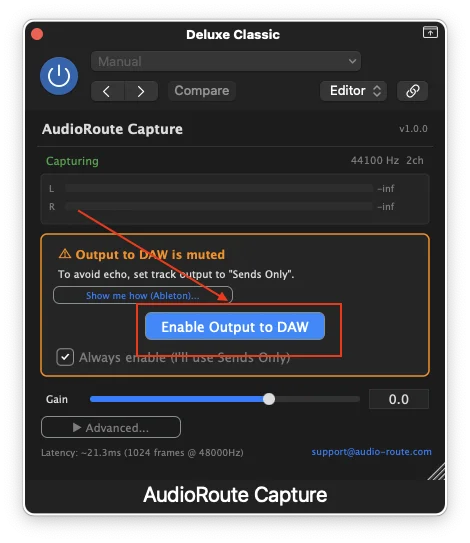
Click Enable Output to DAW. Then play any audio in another app — a YouTube tab, Spotify, an open Zoom call, anything. You should see the plug-in's L/R meters move.
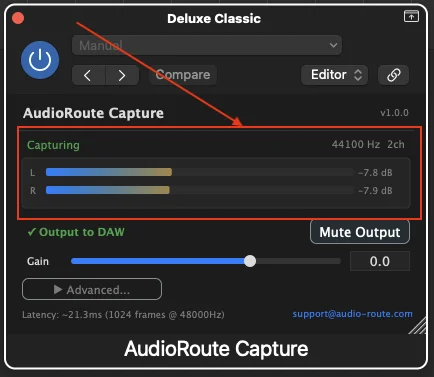
Meters flat? Check that the AudioRoute icon is visible in your menu bar (it indicates the daemon is running). Also confirm that something is actually playing through your system output — if your Mac's output is muted, AudioRoute has nothing to capture.
Step 4
Wire the processing track (Input + Output to a Bus)
Two routing settings on Audio 1, both needed:
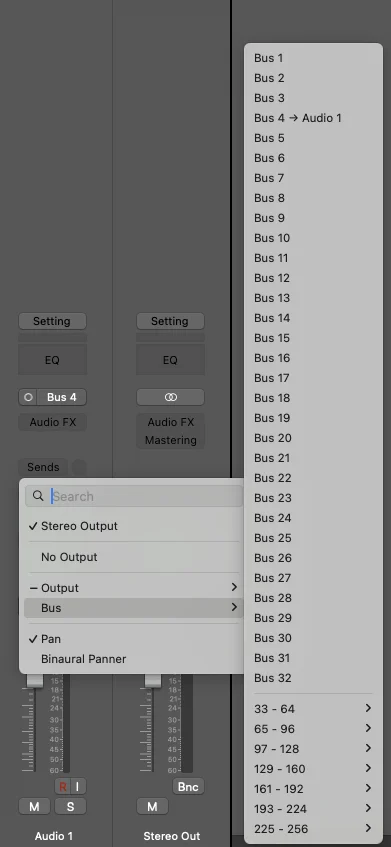
(a) Input. Click the Input slot at the top of the channel strip and pick any unused bus (Bus 4 in the screenshot below). This is a Logic quirk — if Input is set to No Input, Logic refuses to let you enable Input Monitoring later. The bus you pick here doesn't carry any actual signal; AudioRoute Capture FX replaces whatever's on the input with system audio from the daemon. The bus is purely there so Logic considers the track "wired" enough to allow monitoring.
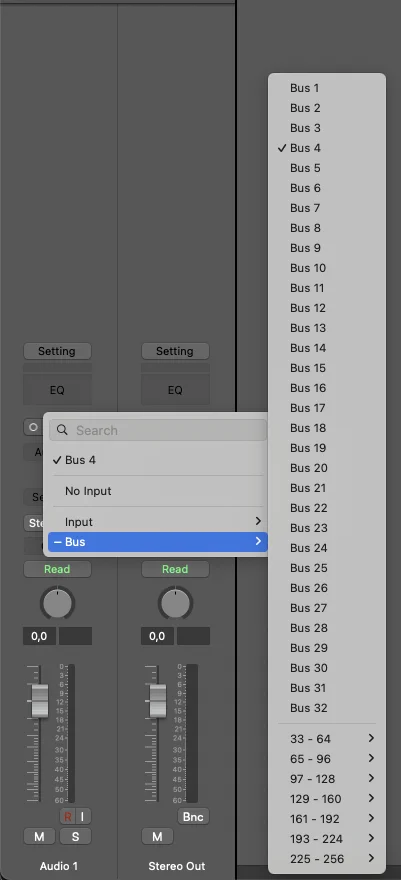
(b) Output. Click Audio 1's Output slot (default Stereo Out) and route it to a different unused bus — the one your recording track will pick up. Bus 4 again in the example (different from the input bus is fine too — pick any free bus you'll remember).
Step 5
Create the recording track
Add a second Audio track (Audio 2). On Audio 2:
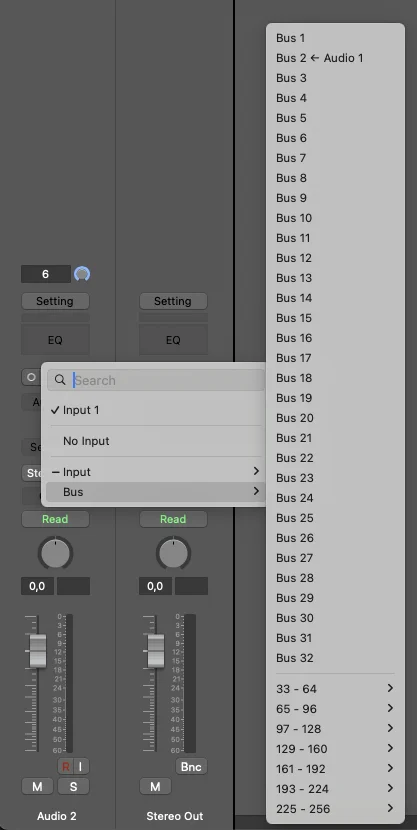
- Input → the same bus Audio 1's Output is routed to (Bus 4 in the example). Logic shows it as
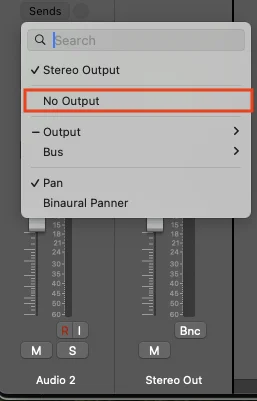
Bus 4 ← Audio 1— the left arrow confirms the wiring matches. - Output → No Output. This prevents Audio 2 from sending the captured signal back out to your speakers, which would feed back through AudioRoute and create a loop. You'll still hear the audio via Audio 1's Input Monitoring in the next step.
Step 6
Monitor on the processing track, arm and record
Last two clicks:
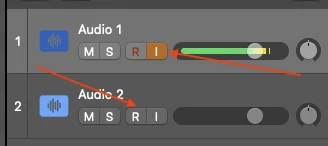
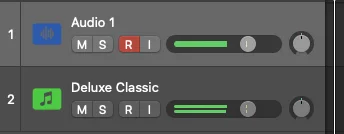
- Audio 1: click the I button (Input Monitoring). The button lights up orange and you start hearing the captured audio through your speakers/headphones — signal is flowing through the FX chain into Logic's master.
- Audio 2: click the R button (Record Enable). The button lights up red.
Press the global Record button (or hit R). The captured audio is recorded onto Audio 2 as a real audio region — the same kind of region you'd get from a microphone or audio interface. Edit it, bounce it, export it, drop it into Flex Time, whatever you'd normally do with audio.
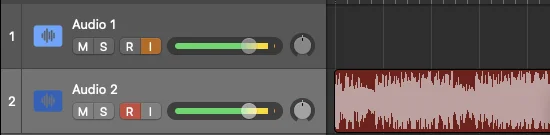
That's the whole setup. After the first project, this is a one-click recall — save it as a template and the routing comes back ready to go.
Section B — Using AudioRoute Capture (Instrument, for existing sessions)
This is the original AudioRoute Capture plug-in (the Instrument flavour). Use it if you have a session that loaded AudioRoute before 0.2.0 — it will auto-load with the same plug-in identifier and your existing routing stays intact. For new sessions, prefer Section A above.
Step 1
Create a Software Instrument track
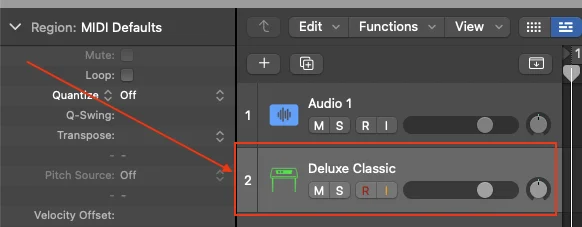
Open your Logic project, or start a new one. In the track list, add a Software Instrument track via Track menu → New Track → Software Instrument, or the shortcut Cmd+Option+S. It'll appear with a small green keyboard icon next to the track number.
Logic loads a default instrument (usually "Deluxe Classic" electric piano) — that's fine, we'll replace it in the next step. The track name will stay "Deluxe Classic" unless you rename it; either works.
Step 2
Load AudioRoute Capture as the instrument
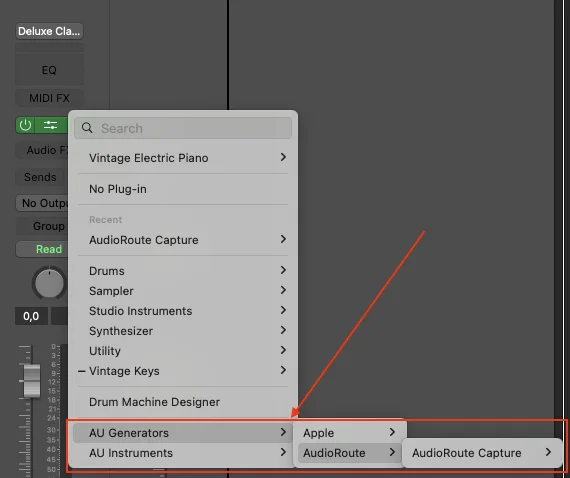
Click the Instrument slot at the top of the Software Instrument track's channel strip (it'll display the current instrument name, e.g. "Deluxe Classic"). A popup menu appears.
Navigate to:
AU Generators → AudioRoute → AudioRoute Capture
Two things to know:
- It's under AU Generators, not AU Instruments. Logic groups AU plug-ins by AU type code, and "generator" is the type Apple defined for "plug-in that outputs audio without taking audio input." Same plug-in, just where Logic files it. (This is the exact discoverability problem that Section A's Effect variant solves.)
- If you don't see AudioRoute in the menu at all, open Logic Pro → Settings → Plug-In Manager and search for AudioRoute. It should be listed with a checkmark under "Compatibility." If it's missing entirely, the AudioRoute installer didn't complete — reinstall and retry.
Step 3
Enable output and verify audio is flowing
The AudioRoute Capture plug-in window opens. The first time you load it, you'll see an "Output to DAW is muted" warning with a big blue Enable Output to DAW button. This is intentional — the plug-in starts in a safe state on first launch so that it can't accidentally create a feedback loop before you've finished setting up your routing.
Click Enable Output to DAW to start sending captured audio into the Audio track.
You'll also see a checkbox labeled "Always enable (I'll use Sends Only)". Leave it unticked for now — in a fresh session, the safety prompt is what stops you from accidentally creating a feedback loop before routing is set up. Once you've completed Step 4 (Output → Bus 1) and verified there's no feedback in your take — either via headphones or by setting the Aux strip's Output to No Output, see Common gotchas — you can tick the checkbox on future sessions so the prompt doesn't reappear.
Once Output to DAW is enabled, play any audio in another app — a YouTube tab, Spotify, an open Zoom call, anything. You should immediately see the L/R meters in the plug-in window move, showing dB values like -7.8 dB.
Meters flat? Check that the AudioRoute icon is visible in your menu bar (it indicates the daemon is running). Also confirm that something is actually playing through your system output — if your Mac's output is muted, AudioRoute has nothing to capture.
Step 4
Route the track's output to a Bus
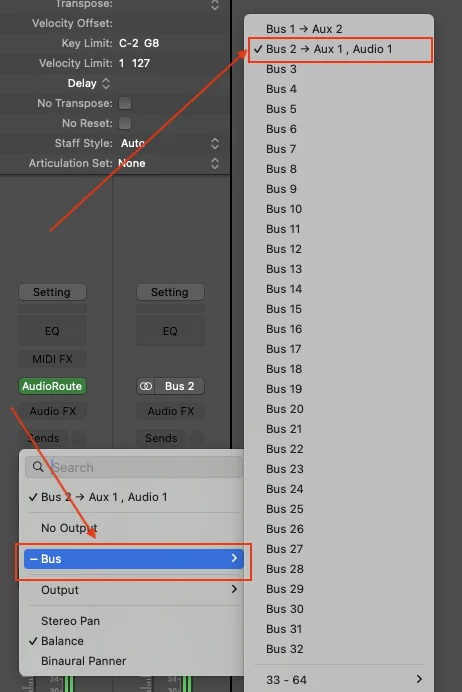
So far, the captured audio is being sent to your Stereo Out — that's why you can hear it through your speakers or headphones. But Logic doesn't record audio from a Software Instrument track; it records MIDI. To get the audio onto disk, we need to route it to an Audio track.
On the same channel strip, find the Output slot near the bottom (default value: Stereo Out). Click it. Navigate into the Bus → submenu and pick an option labeled like Bus 1 + Aux 1, Audio 1. This is Logic's one-click smart routing: it creates a new Audio track wired to the same Bus, plus the Aux strip in between, in a single action.
Step 5
Set the new Audio track's input to that Bus
Logic just created an Audio track but it does not automatically set the Input — you have to do this step explicitly.
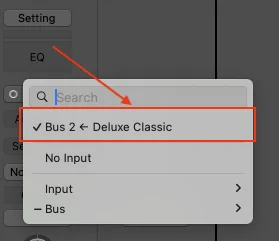
Click the new Audio track to select it, then click its Input slot (top of the channel strip). Pick the Bus you just routed to. Logic labels it with a left arrow pointing to the source track, e.g. Bus 2 ← Deluxe Classic. The arrow confirms you've wired the right end.
Step 6
Arm the Audio track and record
Click the red R (Record Enable) button on the Audio track. You only need to arm the Audio track — the Software Instrument track doesn't need to be armed.
Press the global Record button (or hit R). The captured audio is recorded onto the Audio track as a real audio region — the same kind of region you'd get from recording a microphone or an audio interface. Edit it, bounce it, export it, drop it into Flex Time, whatever you'd normally do with audio.
That's the Instrument-flavour setup. The first time it feels like a lot of steps; every project after that is two clicks (pick the SI track, pick its output bus) because the AudioRoute plug-in and routing persist in template projects.
Common gotchas
"AudioRoute Capture isn't in the Audio FX menu — why?"
Two different plug-ins. AudioRoute Capture FX (the Audio Effect, recommended for new sessions) does appear in the Audio FX menu on an Audio track — see Section A. The original AudioRoute Capture (the Instrument) does not appear in Audio FX because Logic filters that menu to AU effect types (aufx, aumf) and the original variant is an AU Generator (augn) by design. If you're not seeing AudioRoute Capture FX in Audio FX, you're either on AudioRoute 0.1.x (update to 0.2.0+) or Logic hasn't rescanned plug-ins yet (quit and reopen Logic).
Feedback loops during recording
If you hear feedback during recording, here's what's happening: the captured audio plays through Master → your speakers → AudioRoute re-captures it → the signal loops. Two reliable fixes:
- Wear headphones (plugged into a different output than the one your system audio is using). The simplest fix — no routing changes needed. Recommended for most sessions.
- Mute the Aux strip's Master output. The Aux strip that Logic auto-created for Bus 1 has its own Output slot (default: Stereo Out). Change it to No Output. The Bus signal still reaches the destination Audio track via internal routing, but it stops being sent to your speakers, breaking the loop. Trade-off: you can't hear the captured audio during the take.
Avoid using a Send instead of Output to Bus
If you're tempted to use a Send to Bus 1 (instead of routing the track's Output to Bus 1), there's a footgun worth knowing about. Logic's Send level defaults to −∞ when you first assign a Send to a Bus — meaning no audio flows through the Send until you manually drag the small Send level knob up to 0 dB. It's an easy step to miss, and the symptom is silent recordings with no clue why.
The Output → Bus 1 routing in Step 4 of this guide always works at unity gain, controlled only by the track fader. No hidden level knob to forget. Use Output unless you specifically need to send a parallel copy at a different level (e.g., a headphone-mix Bus alongside the recording).
What does the "Mute Output" button in the plugin do?
The Mute Output toggle inside the AudioRoute Capture plugin window stops the plugin from sending audio to the DAW entirely. It exists for scenarios where you only want to use AudioRoute's standalone tray recorder (or its virtual input device) and don't need the DAW path active.
Leave Mute Output OFF when recording into Logic. If it's on, the Audio track will record silence — the plugin isn't passing audio through. The status line "Output to DAW" should be green and unchecked.
My recording sounds quiet (or too loud)
The plugin passes audio through at unity gain by default. Check the Gain slider in the plugin window — it should be at 0.0 dB unless you've adjusted it. The L/R meter levels you see in the plugin are exactly what'll be written to disk on the Audio track. If you need to attenuate or boost, do it with the Gain slider in the plugin (before recording) or as a fader move on the Audio track during playback.
Shortcut: skip Logic, capture straight to WAV
If your goal is just "I need a WAV file of what's playing on my Mac" and you don't need DAW editing, AudioRoute can do that directly from the menu bar app. No Logic project, no Software Instrument track, no Bus routing.
Click the AudioRoute icon in your menu bar → Start Recording. It captures to ~/Documents/AudioRoute Recordings/ (configurable in preferences) at your chosen sample rate and bit depth. Click Stop Recording when done. The file is ready to drop into anything that opens a WAV.
Same plugin under the hood, zero DAW setup. Useful for quick one-offs — capturing a snippet of a lecture, grabbing a sample from YouTube, recording a Zoom call without setting up a session.
Related guides
- Capture audio and drag it into any DAW — the universal drag-and-drop workflow.
- Record system audio on Mac (no DAW required) — the simpler workflow when you don't need Logic in the loop.
- Record system audio in Ableton Live — same idea, Live-specific routing.
- Record system audio in Reaper — cross-platform DAW workflow.
- Record system audio in Cubase — the Cubase Pro / Artist routing version.
- Record system audio in GarageBand — the free-DAW option if you don't have Logic yet.
- AudioRoute vs BlackHole — honest comparison and 5-minute migration.
Try AudioRoute on your next session
Free 14-day trial, no credit card. €39 lifetime license, all future updates included.
Download AudioRoute View pricing