Home / Guides / Record system audio in Pro Tools
How to Record System Audio in Pro Tools (AAX)
Pro Tools has no built-in way to record system audio — whatever's playing through Spotify, YouTube, Zoom, your browser, or any other app — into a session. This guide walks through it with AudioRoute's AAX plug-in, using a simple bus-to-track routing that records a clean copy of your system output onto an audio track. No aggregate device, no virtual driver wiring, no Audio MIDI Setup. Screenshots are from Pro Tools on macOS; the workflow is identical on Windows (use Ctrl where the shortcuts say Cmd).
Pro Tools has no built-in system-audio recorder, but AudioRoute's AAX plug-in adds one with a simple bus-to-track routing — no aggregate device or virtual driver. Insert AudioRoute Capture FX on one stereo track, send it to a bus, and record that bus on a second track.
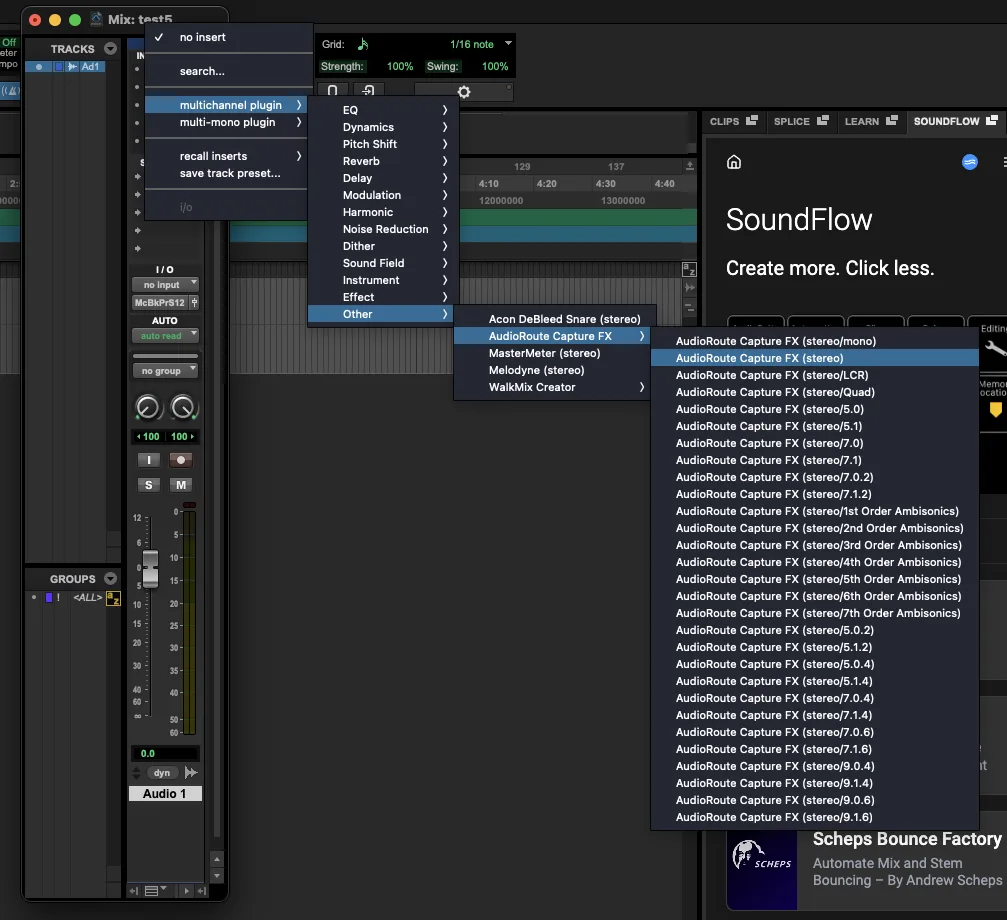
- Create a stereo Audio Track and insert AudioRoute Capture FX (multichannel plugin → Other → stereo).
- Set that track's output to a free stereo bus, e.g. Bus 3-4.
- Create a second stereo Audio Track, set its input to the same bus, and set its output to No Output.
- Record-arm the second track, then press global Record and Play.
Prefer to capture and drag it in? This guide covers the live-to-track flow. If you'd rather record the audio and drag the finished clip straight onto a track, the drag-and-drop workflow works the same in every DAW.
Why this is hard by default
Pro Tools records audio from any input path — an interface, a bus, a mic. But "system audio" isn't an input. Your OS routes whatever's playing through your selected output (speakers, headphones, an interface), and there's no built-in "system output as input" device to record from.
The usual workarounds treat this as a routing problem: install a virtual audio device that pretends to be a speaker, then redirect your system output into it. On Mac that's BlackHole plus an aggregate device in Audio MIDI Setup; on Windows it's VB-Cable or VoiceMeeter. Both work, but they hijack your output routing and break the moment you switch devices.
AudioRoute takes a different approach: instead of rerouting your output, it quietly observes whatever your system is already playing and delivers a parallel copy into Pro Tools. Your speakers, headphones, or interface keep working exactly as before. More on how it works under the hood if you're curious.
What you'll need
- macOS 14.2 (Sonoma) or later, or Windows 10 (build 20348) or later.
- Pro Tools — this guide was written using a 2025 release on macOS; any recent version with AAX support works the same way, and the flow is identical on Windows (use Ctrl for the Cmd shortcuts).
- AudioRoute with AAX support — the free 14-day trial covers the whole workflow. €39 lifetime license. The AudioRoute Capture FX plug-in is PACE-signed so it loads in standard Pro Tools; it installs to
/Library/Application Support/Avid/Audio/Plug-Ins/on macOS andC:\Program Files\Common Files\Avid\Audio\Plug-Ins\on Windows.
If AudioRoute doesn't appear in the insert menu right after installing, quit and relaunch Pro Tools — it scans plug-ins at launch.
Step-by-step
Step 1
Create a stereo audio track
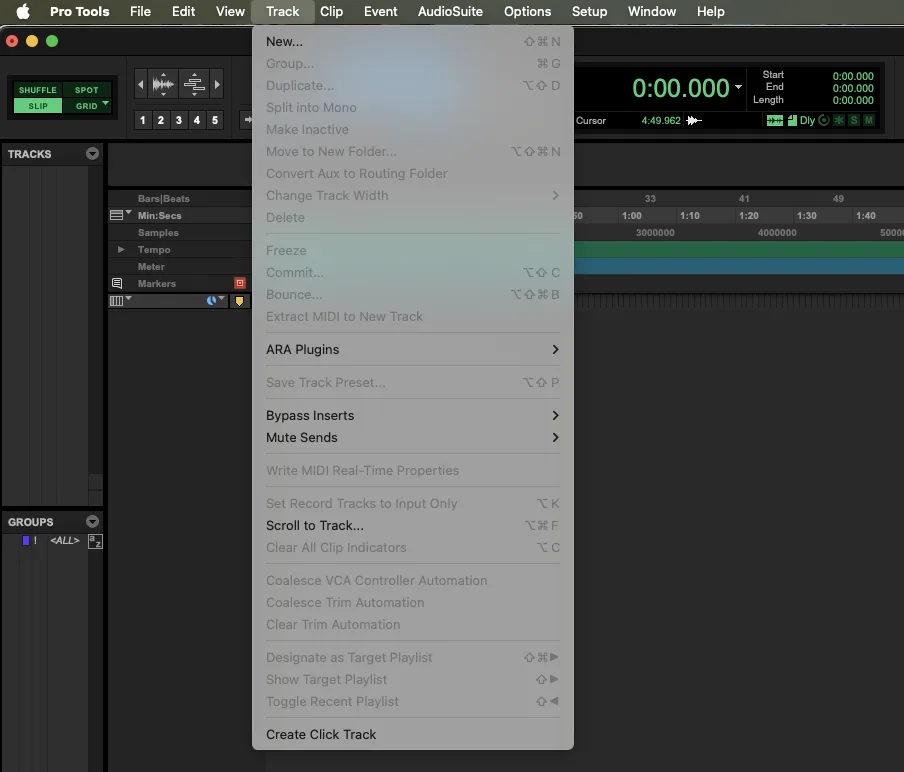
Open your session (or start a new one) and choose Track → New (Cmd+Shift+N).
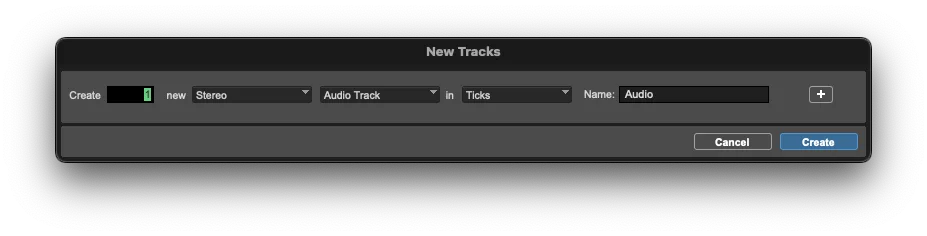
In the New Track dialog, create 1 new Stereo Audio Track and click Create. This is the track that will host the AudioRoute plug-in.
Step 2
Open the Mix window
Open the Mix window via Window → Mix (Cmd+= on Mac, Ctrl+= on Windows). The Mix window gives you the insert slots and the input/output selectors you'll need for the routing below.
Step 3
Insert AudioRoute Capture on Track 1
On Track 1, click an insert slot (Inserts A–E) and choose multichannel plugin → Other → AudioRoute Capture FX → (stereo).
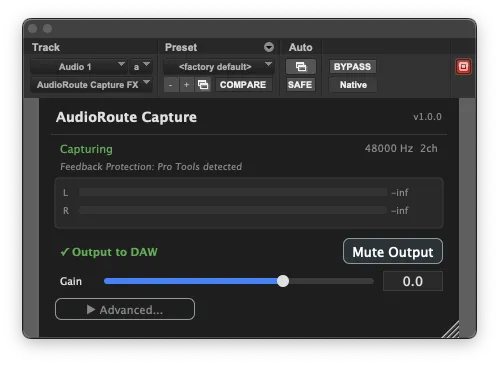
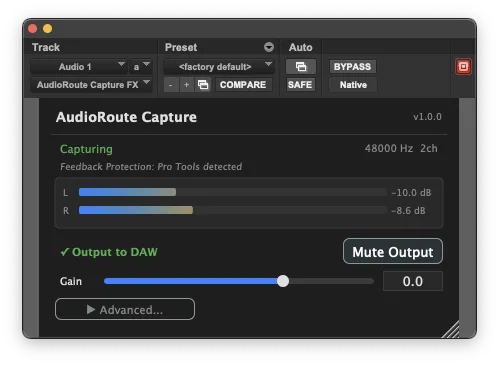
The AudioRoute Capture window opens. It shows Capturing 48000 Hz 2ch, Feedback Protection: Pro Tools detected, and a green ✓ Output to DAW — meaning it's already sending captured system audio into the track. Play something on your system and the L/R meters will move.
Step 4
Send Track 1's output to a bus
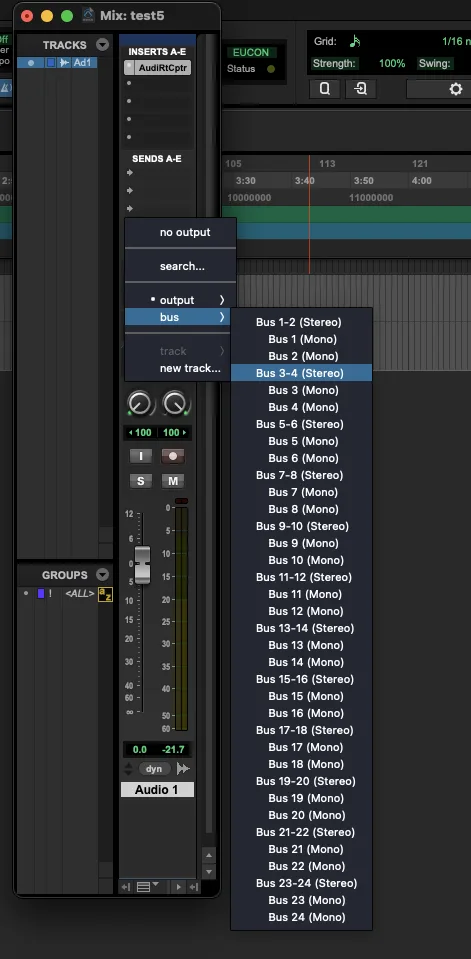
We don't want Track 1 going straight to your speakers — we want to record it. So route Track 1's output to an internal bus. Click Track 1's output selector and choose bus → Bus 3-4 (Stereo) (any free stereo bus works; 3-4 just keeps 1-2 free for your normal mix).
Step 5
Create a second stereo audio track
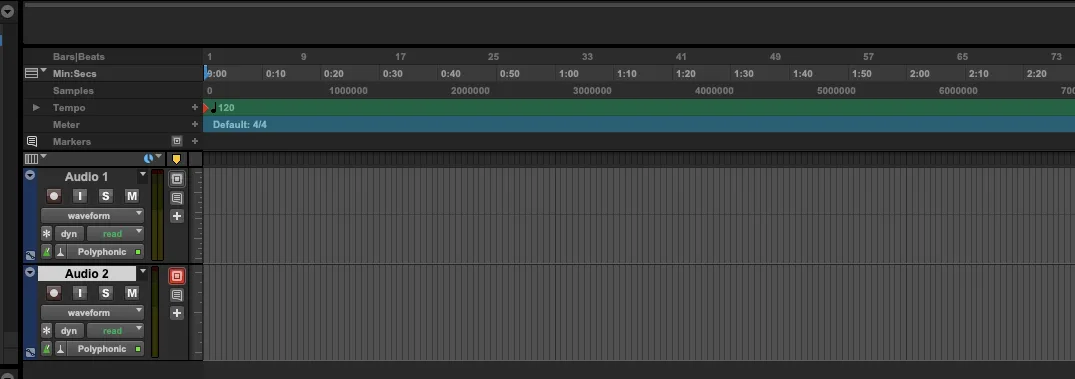
Add another track with Track → New — again 1 Stereo Audio Track. This Track 2 is the one you'll actually record onto.
Step 6
Set Track 2's input to the same bus
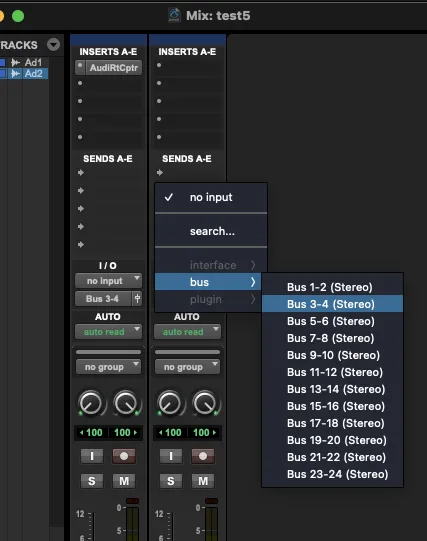
Click Track 2's input selector and choose bus → Bus 3-4 (Stereo) — the same bus Track 1 is sending to. Track 2 now receives the captured system audio.
Step 7
Set Track 2's output to No Output
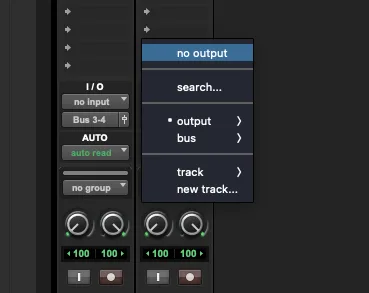
To keep things quiet while recording, set Track 2's output to No Output (or an unused bus). This avoids an echo through your monitors during the take. It's optional — if you leave Track 2 pointed at your speakers you'll hear a slight echo, but the recording itself is unaffected either way.
Step 8
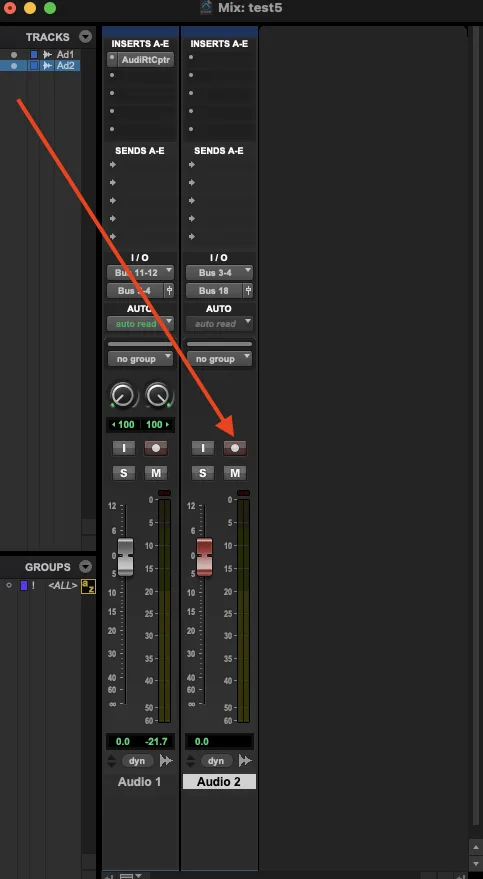
Record-arm Track 2
Click the record-arm button on Track 2 so it lights red. This is the track the audio will be written to.
Step 9
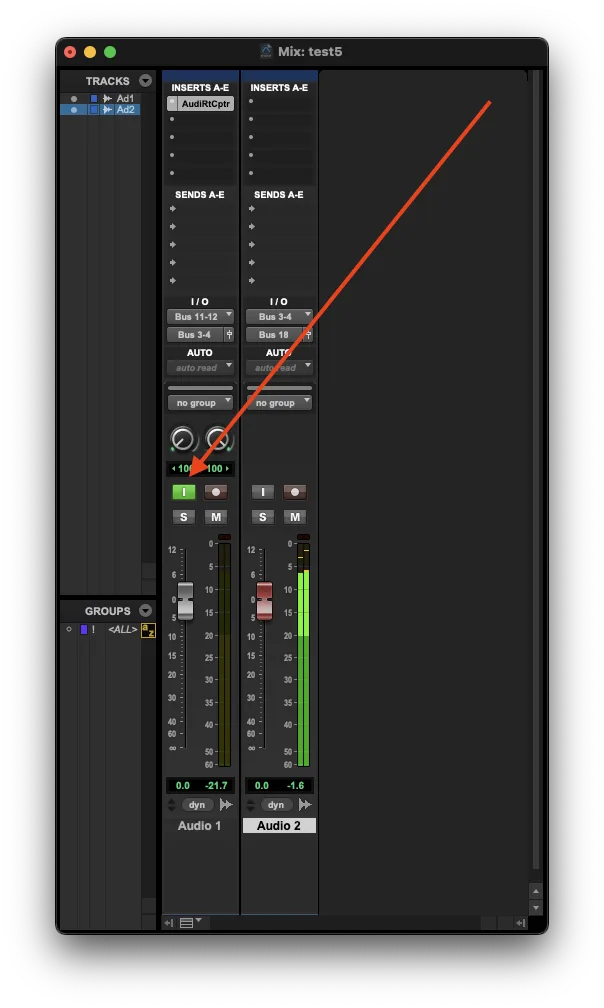
(Optional) Watch the meters
To confirm audio is flowing, enable input monitoring on Track 1. With something playing on your system, the L/R meters in the AudioRoute Capture window will move — proof the capture is live before you commit a take.
Step 10
Record
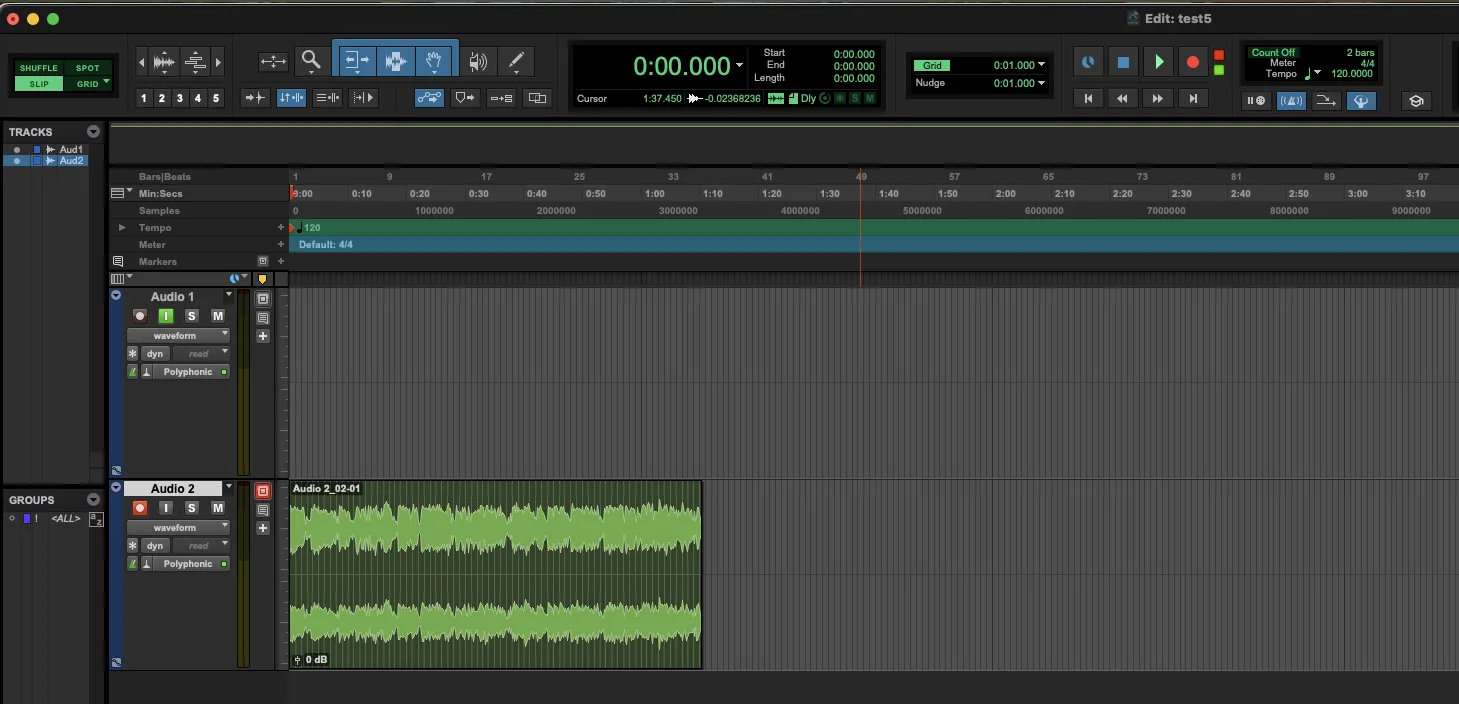
Click the global Record button in the transport (it arms the transport), then hit Play (the green button) — recording starts. Play whatever you want to capture on your system.
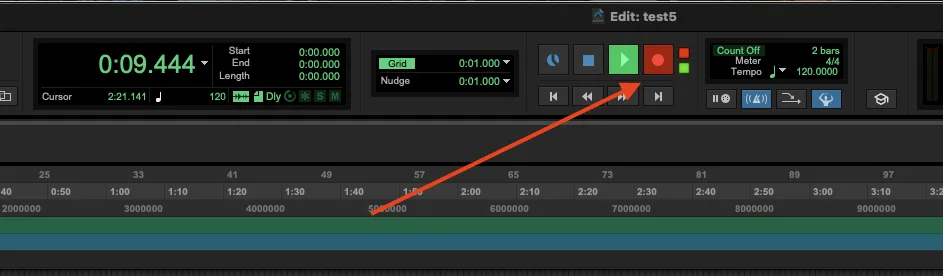
Press Stop (Spacebar) when you're done. The captured audio lands on Track 2 as a normal audio clip — edit it, bounce it, or drag it wherever you like.
Listening back to your recording
When you're ready to hear the take, set Track 2's output back to your main output (e.g. Output 1-2 / your speakers) and press Play. You don't have to worry about AudioRoute re-capturing the playback: its feedback protection automatically excludes Pro Tools' own output from what it captures, so playing back your recording won't feed it back into a new capture.
Common gotchas
An echo while recording
If you hear a doubled/echoey sound during the take, it's Track 2 monitoring the bus back through your speakers. Set Track 2's output to No Output during recording (Step 7) — the recording is clean regardless, No Output just silences the monitor path. Or simply wear headphones.
The recording is silent
Check three things: (1) something is actually playing through your system output; (2) the AudioRoute Capture window shows a green ✓ Output to DAW, not a muted state; and (3) Track 2's input is set to the same bus as Track 1's output (Bus 3-4 in this guide). A mismatched bus is the most common cause of a silent take.
What does "Mute Output" in the plug-in do?
The Mute Output button inside the AudioRoute Capture window stops the plug-in from sending audio into Pro Tools entirely — it's for when you only want AudioRoute's standalone tray recorder or virtual device. Leave it off when recording into Pro Tools, or Track 2 will record silence.
Recording sounds quiet or too loud
The plug-in passes audio at unity by default. Check the Gain slider in the AudioRoute window — it should read 0.0 dB unless you've changed it. The L/R meter levels in the plug-in are exactly what gets written to Track 2.
Shortcut: skip Pro Tools, capture straight to WAV
If you just need a WAV of what's playing and don't need to edit in Pro Tools, AudioRoute can record it directly from the tray/menu-bar app — no session, no bus routing, no arming.
Click the AudioRoute icon in your menu bar (macOS) or system tray (Windows) → Start Recording. It captures to ~/Music/AudioRoute/ by default. Click Stop Recording when done. Same engine under the hood, zero DAW setup — handy for quick one-offs.
Related guides
- Capture audio and drag it into any DAW — the universal drag-and-drop workflow.
- Record system audio on Mac (no DAW required) — the simplest workflow when you don't need a DAW in the loop.
- Record system audio in Logic Pro — the Logic routing version.
- Record system audio in Ableton Live — same idea, Live-specific routing.
- Record system audio in Cubase — the Cubase Pro / Artist version.
- AudioRoute vs BlackHole — honest comparison and 5-minute migration.
Try AudioRoute on your next Pro Tools session
Free 14-day trial, no credit card. €39 lifetime license, all future updates included.
Download free trial View pricing