Home / Guides / On-Demand Mode
On-Demand Mode — When and How to Use It
AudioRoute ships with its background daemon set to Always on — it boots with your Mac or Windows machine and sits ready to capture audio at any moment. On-Demand is an alternative mode for power users who'd rather have nothing in the background until they actively need it: the daemon doesn't start at login, but launches when you open the tray app or load the VST in a DAW, and persists until you explicitly quit. This guide explains exactly what changes, the silent-recording trade-off you're accepting, and how to switch in either direction.
On-Demand mode stops AudioRoute's background daemon from launching at login — instead it starts only when you open the tray app or load the VST/AU in a DAW, and stays running until you explicitly quit. Always-on (the default) keeps the daemon ready in the background at all times. Use On-Demand only if you exclusively record through the tray recorder or a DAW plugin, or you want zero background footprint and full control over update prompts; note that with the daemon stopped, the AudioRoute Capture virtual device records silence with no warning, which is why the mode is gated behind a confirmation dialog. For everyone else, keep Always-on.
What On-Demand mode is
AudioRoute has three pieces:
- A background daemon that does the actual audio capture work (talking to the macOS Core Audio process-tap API or Windows WASAPI process-loopback API, writing into shared memory).
- A tray app — sits in the menu bar on macOS or the system tray on Windows. The UI you interact with, including the record button and settings.
- A virtual audio device ("AudioRoute Capture") and a VST/AU plugin, both of which read audio from the daemon.
In the default Always-on mode, the daemon is registered to auto-launch at login (a LaunchAgent on macOS, a Run-key entry on Windows). It starts when you log in, stays alive in the background, and is ready to deliver audio the moment anything asks for it — whether that's Audacity opening "AudioRoute Capture" as an input, a DAW loading the plugin, or you clicking record in the tray.
In On-Demand mode, the auto-launch entry is removed. At login, neither the tray nor the daemon starts — your machine boots clean. When you do need AudioRoute, opening the tray app or loading the VST in a DAW spins everything up: the daemon launches with the tray, and both persist until you explicitly Quit AudioRoute (or log out). That's the whole behavioral change — the rest of this guide is about the consequences of that.
Always-on vs On-demand at a glance
Always-on Default
- Daemon launches at login and stays running.
- Virtual device and plugin always work, even with AudioRoute closed.
- Update prompts can appear at any time.
- Small but constant background memory/CPU footprint.
On-demand Advanced
- Nothing starts at login — neither tray nor daemon.
- Once launched (via tray or VST), tray + daemon persist until you Quit.
- Zero background footprint until you launch it.
- Update prompts only appear while AudioRoute is open.
- Virtual device records silence if AudioRoute hasn't been launched this session.
⚠ The silent-recording risk is the whole reason this mode is gated behind a confirmation dialog. If you forget to open AudioRoute first and start a podcast / Zoom / Audacity recording using the AudioRoute Capture input, the file will contain silence and you will not get a warning. There is no way for the daemon to flag this from outside its own process — if it isn't running, nothing is.
Read this before switching
The trade-offs are asymmetric. Always-on costs you a few megabytes of RAM and occasional update prompts. On-demand can cost you a recording you can't get back. That asymmetry is why we recommend Always-on for everyone except users who specifically know why they want On-demand.
Concretely, here's how each of the three capture paths is affected when the daemon isn't running:
- Virtual device ("AudioRoute Capture") — silent failure. Apps like Audacity, OBS, Zoom, Discord, ScreenFlow, or anything else that opens "AudioRoute Capture" as an input device will see the device, open it, and record dead silence with no warning. The waveform will be flat. You'll only notice on playback.
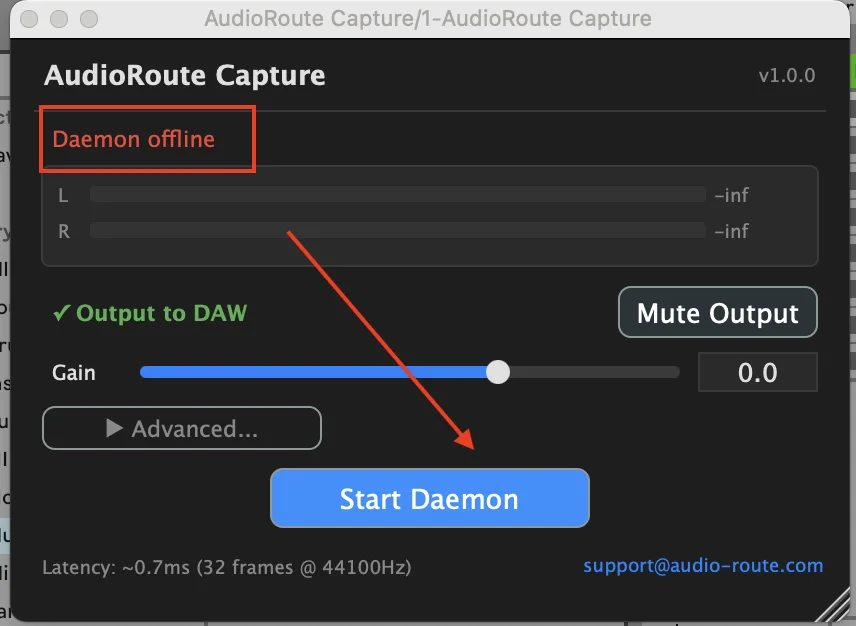
- VST/AU plugin in your DAW — visible failure. The plugin clearly displays "Daemon offline" and the meters sit at
-infdB. You can't miss it, but you do have to look. The plugin offers a Start Daemon button so you can rescue the session in one click. - Tray recorder — unaffected. You're opening AudioRoute anyway to use this path, so the daemon comes up with it.
How to switch to On-demand
Open the AudioRoute tray app, click the Advanced disclosure to expand the advanced settings, scroll to the Daemon row near the bottom, and click the dropdown. It defaults to Always on — pick On-demand.
About the screenshots. The screenshots throughout this guide are captured on macOS; the Windows UI is functionally identical (the same JUCE app), just with Windows window chrome and system-tray placement instead of menu-bar placement.
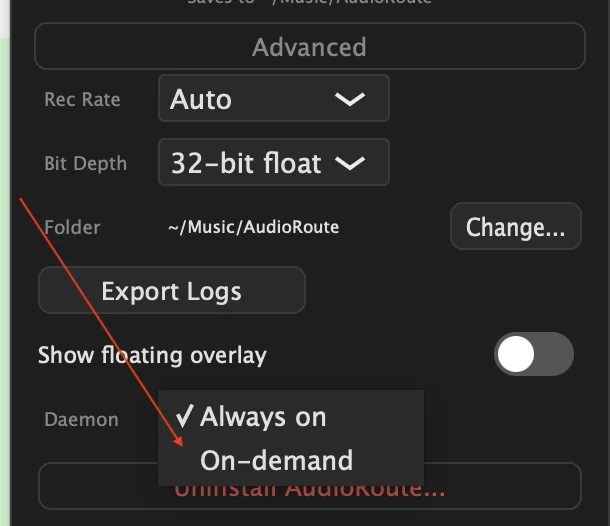
Picking On-demand brings up a confirmation dialog. Read it — it summarises everything in the previous section. To proceed, tick the "I understand the trade-off and accept the risk of silent recordings while AudioRoute is closed" checkbox at the bottom, then click Switch to On-Demand. The checkbox is required; you can't proceed without acknowledging the risk.
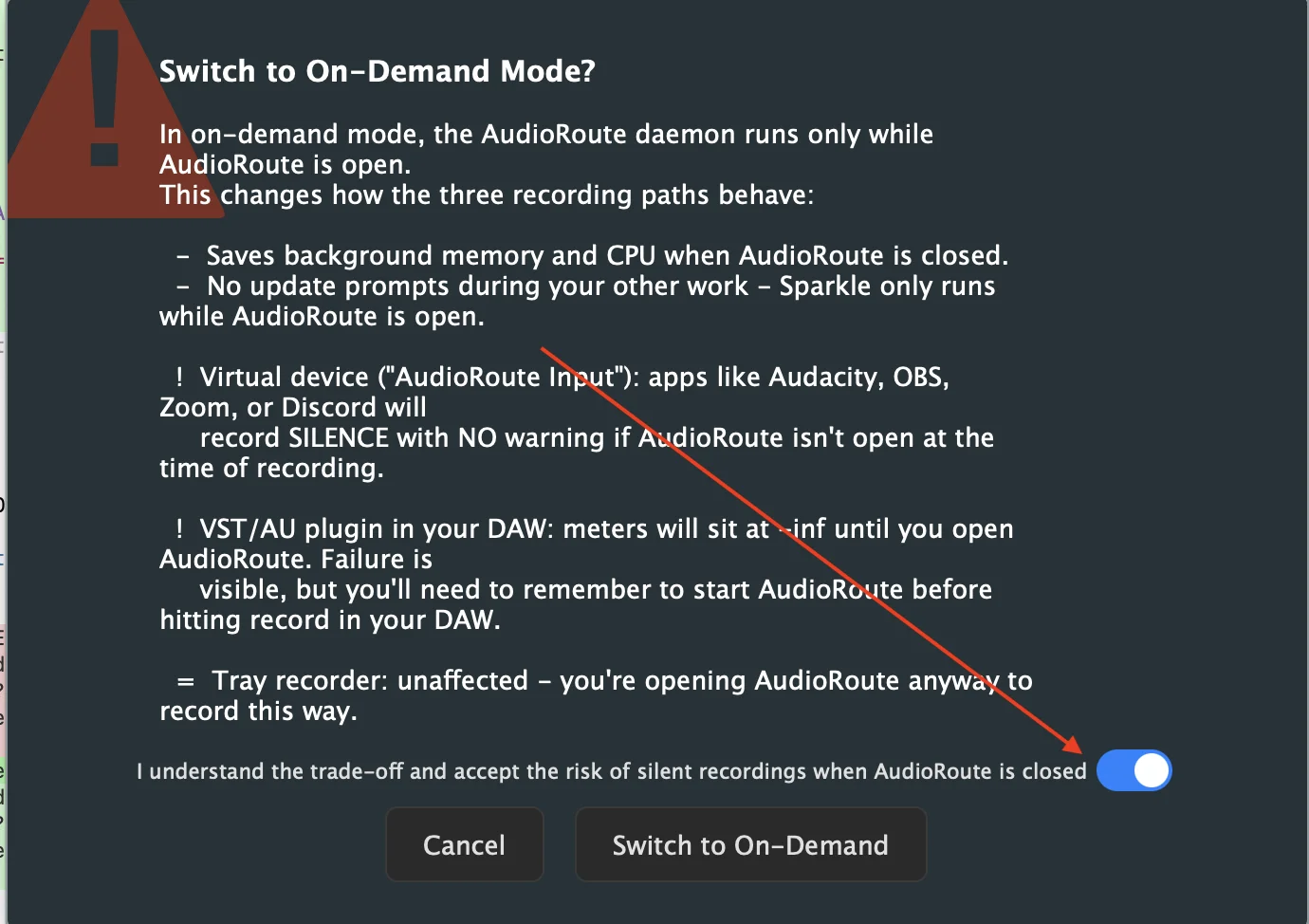
When you confirm, AudioRoute removes the auto-launch entry (LaunchAgent on macOS, Run-key entry on Windows). The next thing you'll see is the tray app reporting that the daemon is offline.
What "Daemon offline" looks like
In the tray app
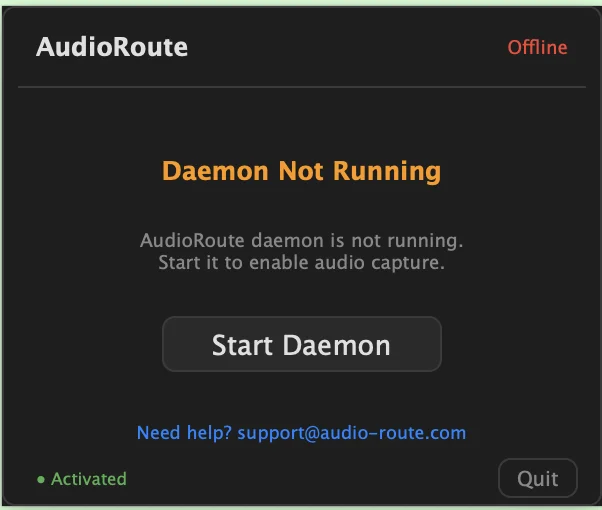
Once you're in On-demand mode and the daemon isn't running, the tray app reflects it clearly: an Offline indicator in the top-right corner, a centred Daemon Not Running heading, and a single Start Daemon button. Your license activation status (bottom-left) and the rest of the UI are unaffected — only the daemon's state changes.
In the VST/AU plugin
In your DAW, the AudioRoute Capture plugin shows a red Daemon offline status, meters at -inf, and a prominent blue Start Daemon button where the meters would normally be. You can start the daemon directly from inside the plugin without alt-tabbing — useful when you're mid-session.
Starting the daemon from tray or VST
Either Start Daemon button does the same thing: it launches the daemon process. Within a second or so the plugin status flips from "Daemon offline" to a green Capturing indicator with the active sample rate and channel count, and the meters become live.
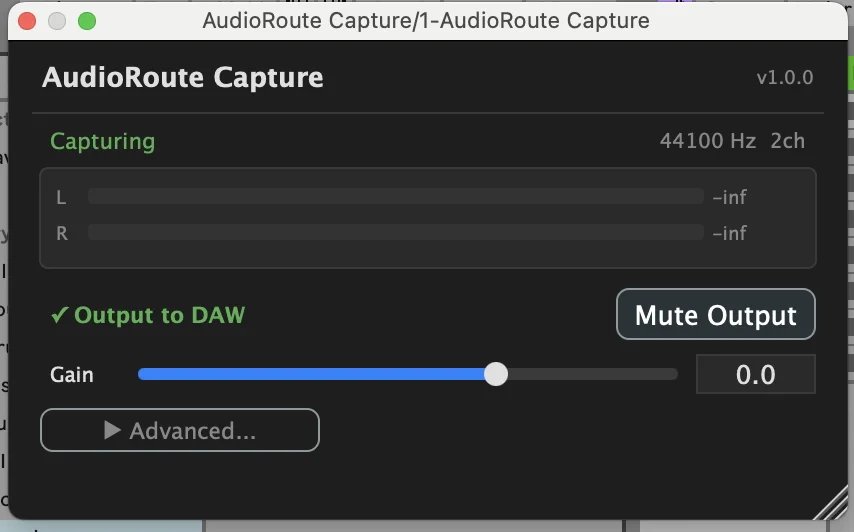
From this point on, the tray and daemon stay alive until you explicitly Quit AudioRoute (or log out). They don't shut down when you just close the tray window — only on explicit Quit. The defining behavior of On-demand is what happens at next login: nothing starts automatically. Until you open the tray or load the VST again, you're back to a clean boot.
Boot behavior
In On-demand mode, nothing starts when you log in — neither the tray nor the daemon. The auto-launch entry (LaunchAgent on macOS, Run-key on Windows) is removed as part of switching modes and stays removed until you switch back to Always-on. Each session, you have three ways to bring AudioRoute up:
- Open the AudioRoute tray app yourself (from Applications on macOS, Start menu on Windows).
- Load the AudioRoute Capture VST/AU in a DAW and click its Start Daemon button — the plugin signals the tray to launch, which then spawns the daemon. Useful when you're already in a session.
- Switch back to Always-on once and let the system auto-launch take over again.
Once any of these brings AudioRoute up, the tray + daemon stay alive for the rest of your login session. They don't shut down when you close the tray window — only on explicit Quit (or logout). At the next login, you're back to a clean boot and need to launch again. That's the whole point of On-demand: nothing is running in the background unless you ask for it.
Switching back to Always-on
Same place: Advanced → Daemon dropdown → Always on. No confirmation dialog this time — you're returning to the safe default. AudioRoute restores the auto-launch entry (LaunchAgent on macOS, Run-key on Windows) and the daemon will start with your machine from now on. If the daemon isn't already running at the moment you switch, it starts immediately.
Which mode should I use?
Stick with Always-on if you use AudioRoute's virtual device across other apps (Audacity, OBS, Zoom, Discord) or if you record often enough that "is the daemon running?" isn't a question you want to answer before each session. The background cost is negligible, and the daemon's most useful property — "it's there when you need it" — is the entire reason it exists.
Consider On-demand if you fall into one of these specific cases:
- You only ever use AudioRoute through the tray recorder or a DAW plugin. The two paths that visibly fail when the daemon is offline. The silent-recording risk doesn't apply to you because you wouldn't be using the virtual device anyway.
- You're a power user squeezing every megabyte and CPU cycle — e.g. on a low-spec laptop doing latency-sensitive work where you want zero background services.
- You want full control over when update prompts appear. Auto-update checks (Sparkle on macOS, WinSparkle on Windows) only run while AudioRoute is open in On-demand mode, so you won't get an update offer mid-session in another app.
For everyone else — and that's most people — Always-on is the right call. The mode is in the UI because we believe in giving advanced users the choice, not because most people should change it.
Related guides
- Record system audio on Mac (no DAW required) — the simplest AudioRoute workflow.
- Record system audio on Windows (no DAW required) — the same workflow on Windows.
- AudioRoute vs BlackHole — honest comparison and 5-minute migration.
- Record system audio in Logic Pro — live routing into a DAW track.
Questions about On-Demand mode?
If something's not behaving the way this guide describes, we'd like to hear about it.
Email support Back to guides